Pixel Zombie Arena Controls, Auto Fire & Settings
Find the controls for moving, shooting, buying upgrades, and using class skills in Pixel Zombie Arena. You can also turn on Auto Fire and adjust your settings in camp.
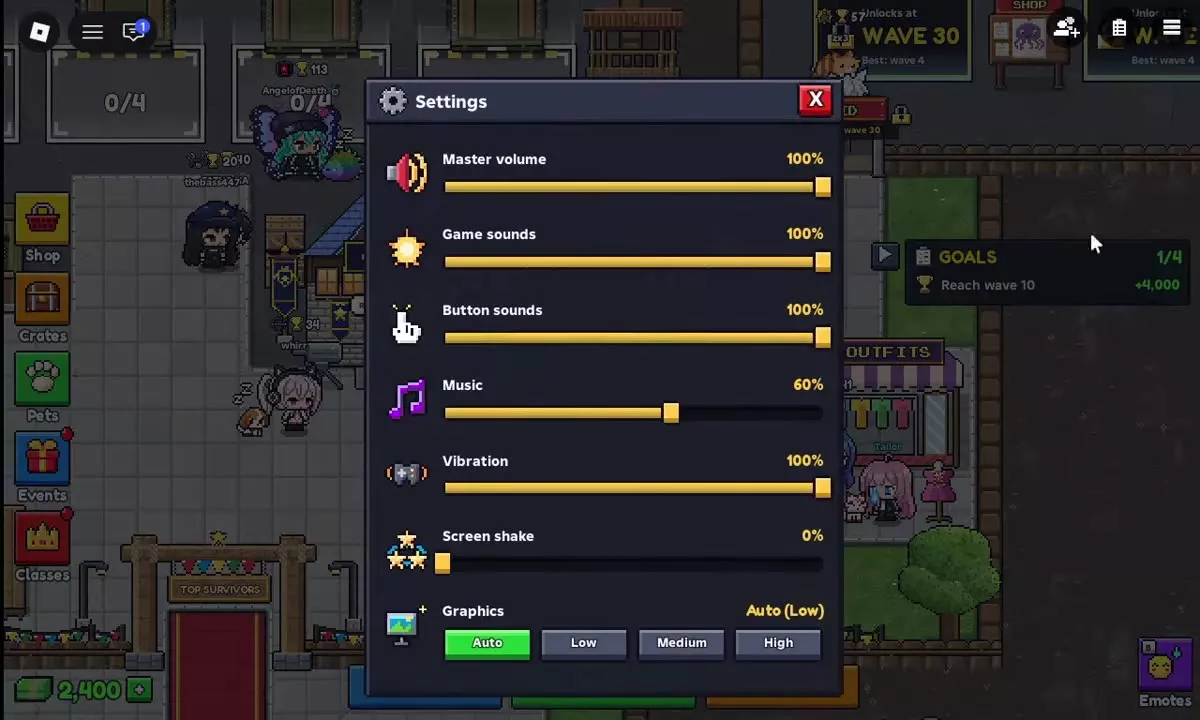
On PC, move with WASD, aim with the mouse, and use Shift to dash. Press C or V to buy the displayed upgrade and Q, E, or R to use class skills. Turn on AUTO FIRE during a match; on PC from v4.6, hold left click to take over aiming. In camp, set Screen shake to 0% to turn it off.
PC Controls and Touch Actions
Enter a match or the tutorial to use these controls. Check the BUY panel on the left and SKILLS panel on the right for the current action and Diamond cost.
| Action | PC control |
|---|---|
| Move | WASD |
| Aim | Mouse |
| Shoot | Hold left click |
| Dash | Shift |
| Buy HP +20 | C |
| Buy weapon or damage upgrade | V |
| Use class skills | Q, E, R |
| Use unlocked ultimate | T |
| Open displayed Diamond offer | Z |
Use Shift to dash through zombies when surrounded. V buys the weapon currently offered; after you buy the last gun in your equipped loadout, the offer changes to Damage +15%, which you can also buy with V. Z corresponds to the +1,000 Diamonds offer when it is displayed.
For the starter Survivor loadout, Q places a Barricade, E uses a Landmine, and R deploys an Auto Turret. Their starting prices are 50, 50, and 135 Diamonds respectively. T activates Sentry Drop once unlocked. Skills and prices depend on your class and upgrades; see class skills and costs for the available abilities.
On a touch screen, tap the displayed purchase or action button, such as Buy Shotgun or Drop Auto Turret. Tap AUTO FIRE during a match to enable automatic shooting.
Auto Fire and Manual Aim
Turn on AUTO FIRE in a match to shoot when zombies enter range. On phones, Auto Fire also aims for you. PC automatic aiming is available from v4.6; hold the left mouse button to take over aiming yourself. The AUTO FIRE button is available from v4.5.
Graphics, Screen Shake and Audio
Open Settings in camp and move Screen shake to 0% to turn it off. Adjust Vibration separately.
Under Graphics, choose Auto, Low, Medium, or High. Auto displays its selected level beside the setting: Auto (Low) means Auto has selected Low.
Use the separate Master volume, Game sounds, Button sounds, and Music sliders to set your audio.